
Emacs takes a lifetime to learn. So the sooner you start, the longer it will take – Youtube Commenter
As part of my work as Security Engineer I’ve been primarily using VSCode, Cursor and the variety of AI-powered IDE’s. But I’ve been missing the comfort and customizability of tools like Vim and Emacs. So within the past month I fired up my old Neovim config and got back to getting things set up to a place I was happy with. I spent a decent amount of time trying to update my nearly 3 year old config to something stable and modern. Lots of those plugins weren’t maintained anymore, some new ones popped up, and things were half working.
Neovim felt like maintaining a zen garden. Things were fragile. My personal desktop was more like a scrapyard. Years of brew install-ing packages that were throwing around python installations meant Neovim was struggling to find the right dependencies. I tried for a bit to clean things up, but it felt like a huge hassle. One can only :CheckHealth so many times when trying to get actual work done. So I switched gears for a bit and decided to fire up my old Emacs config, which was even older– around 7 years.
My Emacs config dates back to Junior year in college. In 2017, I was enrolled in a course where I needed to write an exploit. I had just started working in Emacs, so I chose that as my target, writing an exploit for CVE-2017-14482. If you want to read that paper, you can check it out here. I even wrote the paper in org mode.
Everything just worked. Emacs has a native package manager, even back in 2017. Starting with a fresh installation, I loaded up Emacs and everything installed and worked, all my keybindings, the packages, exactly how I remembered it. Some of the LSP servers I installed back then were outdated, so I replaced some of them, but other than that, I was able to dive right into working… on my editor.
So, as a Vim convert, here’s why I love using Emacs.
Emacs’ Selling points
package.el: Built-in Package Managereglot: Built-in LSP serverproject.el: Built-in Project managementfind-file&diredfor fuzzy searching and directory listingeshell: If you want to use a shell.elisp: Lisp based configuration language. Beats using Vimscriptevil: Vim keybindingsorg-mode: The world’s best plain text file formattramp: Edit remote files directly within Emacstetris: Built in Tetris (M-x Tetris)
package.el and eglot are relatively new additions to Emacs, having been added in the last couple of years. I like that I don’t have to make a decision like I do with Neovim, where there’s no native package manager (Although one is coming soon!), and only Neovim has a LSP client so far. Having native targets gives an easier target for plugin developers, and as a result that tooling in Emacs feels more ’native'.
Org-mode is a great plaintext format– you can think of it as Markdown on steroids. It comes with an agenda, calendar, and babel. Babel lets you embed and run code directly inside of an org file. Back at school I would often take notes in Org and then export them into PDFs through a native latex exported. The one thing org-mode is missing is a spellchecker. Emacs does have flyspell-mode built-in, but it relies on the system having ispell installed. So install it. I’d suggest only enabling flyspell-mode when you’re spellchecking, not leaving it idly running, it has poor performance.
More than anything. I love Evil.
Embracing EVIL!
Evil (Extensible VI Layer for Emacs) solves the issue of Emacs being “A great operating system, lacking only a decent editor” by giving Emacs Vim motions! There’s also some evil equivalents of popular vim plugins, like evil-surround.
Evil is the best Vim emulation I’ve seen in any product I’ve used. If you use Emacs like you use Vim–that is, only for editing text–you won’t notice any issues. Vim power users will notice that the undo behavior in Emacs is different than Vim. Vim uses an undo tree whereas Emacs uses a history undo (page 4 of this paper). I’ve never noticed any issues with the default undo behavior in Evil, but there is a package that implements an undo tree. The only other things that are different is that the Vim motions g;, g, are broken. There are fixes for those if you use them, check out the docs for Evil mode if you need them!
Some tips for Vim users wanting to try EVIL
- You should start with the Emacs tutorial.
- To run the tutorial, start Emacs and type
C-h t, that is,Ctrl-hfollowed byt.
- To run the tutorial, start Emacs and type
- If you get stuck in a buffer or some command,
C-g(Ctrl + G) will usually exit whatever command you may have accidentally stumbled into. Think of it like spammingESCin Vim. C-zwill toggle evil mode on and off in a buffer (useful if you’re using a mode that doesn’t have good evil support. You’ll want to disable them and use native Emacs bindings)C-hwill bring up a help menu.- You’ll want to know
C-nandC-pfor navigating buffers that don’t haveevilsupport - If you bound Caps Lock to
ESCfor Vim, you’ll want to map Caps Lock toCtrl.- It’ll be easier to use
Ctrl-[for switching toNormalmode instead of usingESC
- It’ll be easier to use
- If you’re noticing bad performance:
- Start a profiler using
M-x profiler-startreproduce the bad behavior and then view the report withM-x profiler-report - Sanity check by starting Emacs with
emacs -Qwhich will start Emacs with no config.
- Start a profiler using
Never leaving Emacs
The power in Emacs is in never needing to leave the program. The more you get familiar with using Emacs, the less you should be reaching for the terminal. You can do things straight in Emacs. Email, Calendar, IRC Clients. Want to game? There’s pong, snake, and tetris built in. Browse the web? There’s EWW!
A true Emacs’ user can even have Emacs run as a daemon in the background and connect to it using emacsclient this avoids slow startups. And yes, there is a supplied systemd unit file.

Editing my blog, looking at some Sumo pics I took, browsing the internet? Living the dream
eshell
I’ve been using eshell within emacs. Outside of writing shell scripts, eshell has all the features I need from a shell. You can call programs like ls, cd and find. You can think of eshell as a wrapper for all the programs you’re normally calling from a shell, without having bash or zsh. Eshell has it’s own built-ins just like a normal shell. You can change whether you’re using the elisp built-in or a native binary by prepending a *
$ which cd
eshell/cd is a native-comp-function in ‘em-dirs.el’.
$ which *cd
/usr/bin/cd
A special feature of eshell is that you can write elisp directly into the shell and it’ll be interpreted.
$ (+ 3 3)
6
You can also ditch the parens:
$ * 3 5
15
Since it’s all elisp, you can call regular elisp function directly from the shell. You can also write directly to buffers. Take this example: I want an Emacs buffer that has a calendar for the year 2026. Let’s do it all from eshell
$ cal -y 2026 > #<buffer cal-2026>
There’s also regular shell, which will spawn a normal system zsh/bash/fish if you want. Beginners might prefer shell since it’ll be what they’re used to, and switch to eshell as they embrace the Emacs mindset and feel a bit more… lispy.
3rd Party Modes and Extensions I like:
Company, Ivy, Counsel & Swiper
Company or “complete anything” provides the autocomplete functionality that most IDEs provide out of the box. Emacs’ default behavior is pulling completions, where you’d have to prompt Emacs to give you suggestions. Company mode changes it to a push model, where it will auto suggest things. You can then C-p or C-n to navigate the options in the mini-buffer.
Ivy, Counsel, and Swiper is a trio of tools that provides more generic completion mechanisms in Emacs. Counsel will replace some of Emacs’ default commands with Ivy-compatible alternatives. And Swiper is an alternative to Isearch that uses Ivy. I need to play with removing these to see if I prefer the behavior of these tools over the default Emacs’ built-in behavior. I’ve had them in my init.el forever. TBD!
Claude Code
As of December 2026, seems like this claude code integration is the most popular. Anthropic is a contributor and it’s integrated into spacemacs. Because claude relies on having a full terminal environment, either vterm or eat will need to be installed. I’ve used vterm in the past and currently use eat, but they both are fine.
One suggestion for making Claude Code work better in Emacs is to set (global-auto-revert-mode 1), which will have Emacs automatically reflect changes made on disk. Without it, if you’re using Claude and it makes a change to your file, that change won’t be reflected automatically in the buffer.
Markdown mode
I still use Markdown files to create this Hugo site, and Emacs doesn’t have a native major-mode for Markdown. markdown-mode is available on Melpa, and has everything I need. Out of the box it works great, I’d recommend one additional setup step: Enable visual-line-mode and add it as a hook. This makes sure Emacs won’t break in the middle of the word.
;; In your init.el - enable for all markdown files
(add-hook 'markdown-mode-hook 'visual-line-mode)
Magit
A Git Porcelain inside Emacs, I use this in a limited sense (because I’m not very good with Git). Even for me, being able to quickly checkout branches, pull from main, commit, etc all from Emacs without needing to actually type git is pretty neat. Check it out!
Mac OS Specific Setup
There are a couple ways to install Emacs on Mac OS. There’s the regular brew install emacs, which will install a CLI version of the program, but the magic in Emacs is really in the GUI Variant.
Primary Mac OS install options (brew)
brew install emacsbrew install --cask emacsbrew install emacs-plus(requires d12frosted tap)brew tap d12frosted/emacs-plus
While I don’t feel great about using a random tap–I’m always worried about possible supply chain attacks–This is the easiest way to install a version of Emacs that has all the features I want. The d12frosted tap of Emacs compiles right on your machine, and has great defaults. There are some additional flags you can set if you want them, check out the page here. The second best option I’ve found is the cask option available through brew. Whereas the d12frosted tap is compiled from source, the cask version is just a binary download of Emacs pulled from https://emacsformacosx.com which despite it’s appearance, seems to be legitimate.
The only feature I’ve found that’s not in the cask version is proper cocoa support– mainly the fact that window snapping doesn’t work, either the native version or the ones provided by tools like magnet. So I use emacs-plus.
I used to be a bit of a Unix Ricer– I like to have my applications try to look as good as possible. For Emacs, the typical appearance is pretty ugly, with a huge titlebar with a bunch of icons that I don’t need. The titlebar doesn’t match the themeing either, which many native apps will do, so it ages the interface. The scrollbar is also an eyesore. You can edit the window styling on either emacs-plus or the cask version of Emacs on brew.

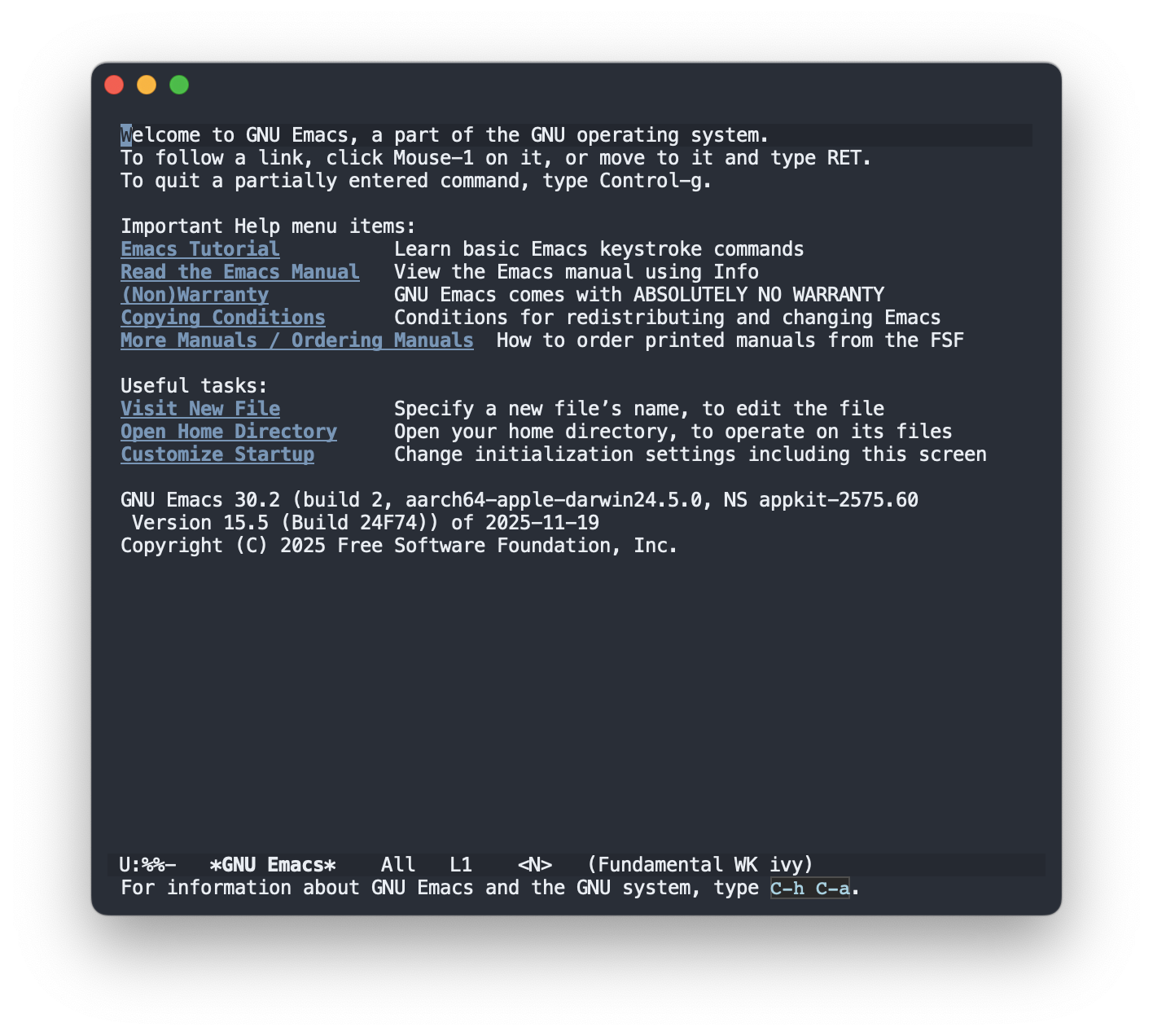
Here’s the elisp config I used to change the appearance:
;; Remove Tool Bar, Scroll bar, and get rid of frame titles.
(tool-bar-mode -1)
(scroll-bar-mode -1)
(setq frame-title-format "")
;; Emacs-plus exclusive options. Will make sure text matches the theme correctly (in case of light themes vs dark themes)
;; ns-transparent-titlebar is the option that does the theme color matching
(add-to-list 'default-frame-alist '(ns-appearance . dark))
(add-to-list 'default-frame-alist '(ns-transparent-titlebar . t))
Spacemacs and Doommacs
Spacemacs and Doom Emacs are some popular Emacs distros. I’ve stolen Spacemacs’ Space-as-Leader convention, and I think it’s great. I also use doom Emacs’ nord-theme, since it has better support for Emacs modes than the regular nord theme on Melpa. Both these distros can be great for beginners, or those who don’t enjoy tinkering with their editor. Once you start adding customizations on top of these distros, it can become a bit complicated, since you didn’t set everything up, you can install packages that conflict with one another and not know it. You’re also getting a ton of features that you may not need.
Take doommacs for example, which uses straight.el instead of package.el (which is the built-in package manager), if you’ve never used Emacs before, you could end up using the package.el manager syntax, since that’s what many docs for Emacs will suggest by default.
My suggestion for those coming from Vim: use spacemacs for a bit. Don’t install any packages, just work on your projects and see how it feels to live in Emacs. When you’re more comfortable, you can either stick with spacemacs or switch to vanilla Emacs. Keep the parts of spacemacs you like, get rid of the things you don’t understand.
Closing thoughts
It’s not all sunshine and rainbows for Emacs. Emacs is best when you live in it– you open one instance of Emacs and you do everything you need inside it. Since Emacs is single threaded, a badly behaving buffer can cause the rest of the client to hang. Even with Evil mode, you’ll need to know enough Emacs keybindings in case you find yourself in a mode that doesn’t support Evil, or you break your config.
Speaking of config, you’ll either need to set it up in ~/.emacs, ~/.emacs.d/init.el or ~/.config/emacs/init.el. You should set it up in ~/.config/emacs/init.el if you can. Be careful because if you have an existing emacs config, and packages get installed there, Emacs might look for packages and config files in that directory before looking in your new location. Best to completely delete your ~/.emacs.d folder in that situation and start fresh. Spacemacs and Doommacs have their own places they store files, so read the docs if you’re using those distros.
While eshell is great, there are times where you need to use a full blown ncurses compatible terminal. Emacs does have options like vterm and eat which will give you those, but they can be very slow, even running a tool like htop will have screen tearing issues. While I try not to use the terminal much, there are still programs like Claude which need one. While I’m trying to use the claude integrations for Emacs more, I’m still using Ghostty and Claude for some tasks.
All that being said, Emacs is much more fun to use on a day-to-day than Neovim, I just leave it open throughout the day and hop back inside when I need to get something done. I’m not Emacs obsessed enough to use exwm and use Emacs as my window manager…yet.